Your rep gets a promising LinkedIn reply, opens the CRM, and finds the prospect already exists under a different company name. Another record has the right owner but an old title. The connector is working, yet nobody knows which record should receive the conversation.
That’s the core setup problem. LinkedIn CRM sync is a data-quality decision before it’s a connection task. Moving more records won’t help if the integration overwrites trusted fields, creates leads for every interaction, or brings suppressed contacts back into outreach.
Table of Contents
- What Must Be in Place Before You Connect
- How to Connect LinkedIn to Your CRM Step by Step
- Field Mapping Rules That Protect Your Records
- Which LinkedIn Signals Belong in Your CRM
- Deduplication and Troubleshooting Sync Errors
- Confirm the Sync Before You Scale It
What Must Be in Place Before You Connect
Before authorizing anything, identify the CRM administrator who can create custom fields and the person who can approve connector permissions. These might be different people. You’ll need both involved when a field exists but the integration account can’t write to it.
Define the source precisely: Sales Navigator lead lists, message replies, and engagement signals aren’t interchangeable. A connector that displays LinkedIn profiles inside Salesforce doesn’t necessarily persist those fields or deliver reply events. When evaluating architecture, Fetchin’s guide can help you compare LinkedIn data API options, but verify approval, permissions, and supported objects for your actual integration.
Use approved API or OAuth access, not scraping or manual exports that breach LinkedIn’s terms. Document how long you’ll retain synced prospect data and who handles deletion requests.
Assign authority before allowing writes
Make the CRM the system of record for contact ownership, lifecycle stage, and duplicate decisions. Assign a named owner to every other synchronized attribute, including connection status, job title, and outreach suppression.
Set the matching hierarchy before the first upsert: CRM ID or approved LinkedIn member/company identifiers first, verified email for people or company domain for accounts second. Send fuzzy name-plus-company matches to human review. A shared employer doesn’t make two people the same contact.
The organizational stakes are concrete: in a 2021 study covering nearly 800 executives and 1,500 employees across 15 countries, Salesforce reported that 73% of respondents described fragmented CRM environments, while 70% said fragmentation meant account data came from too many sources.
Check the records you already have
For a practical starting audit, sample fifty contacts. Count duplicates, missing company domains, and stale titles, then retain that list as your test cohort. This is an operating recommendation, not a statistical sample of your whole database.
Before connecting, confirm:
- Admin access: Someone can create fields and inspect integration logs.
- Connector approval: Someone owns permission review and authorization.
- System of record: The CRM controls assignment and lifecycle decisions.
- Attribute ownership: Every mapped field has an explicit write authority.
- Test list: Your audited contacts are ready for validation.
Readiness test: If you can’t identify who owns a sample contact, the sync isn’t ready.
How to Connect LinkedIn to Your CRM Step by Step
Treat authorization as the start of testing, not proof of success. In Validity’s 2020 State of CRM Data Management report, 95% of participants experienced at least some CRM data-quality issues. A successful connection won’t resolve those problems automatically.
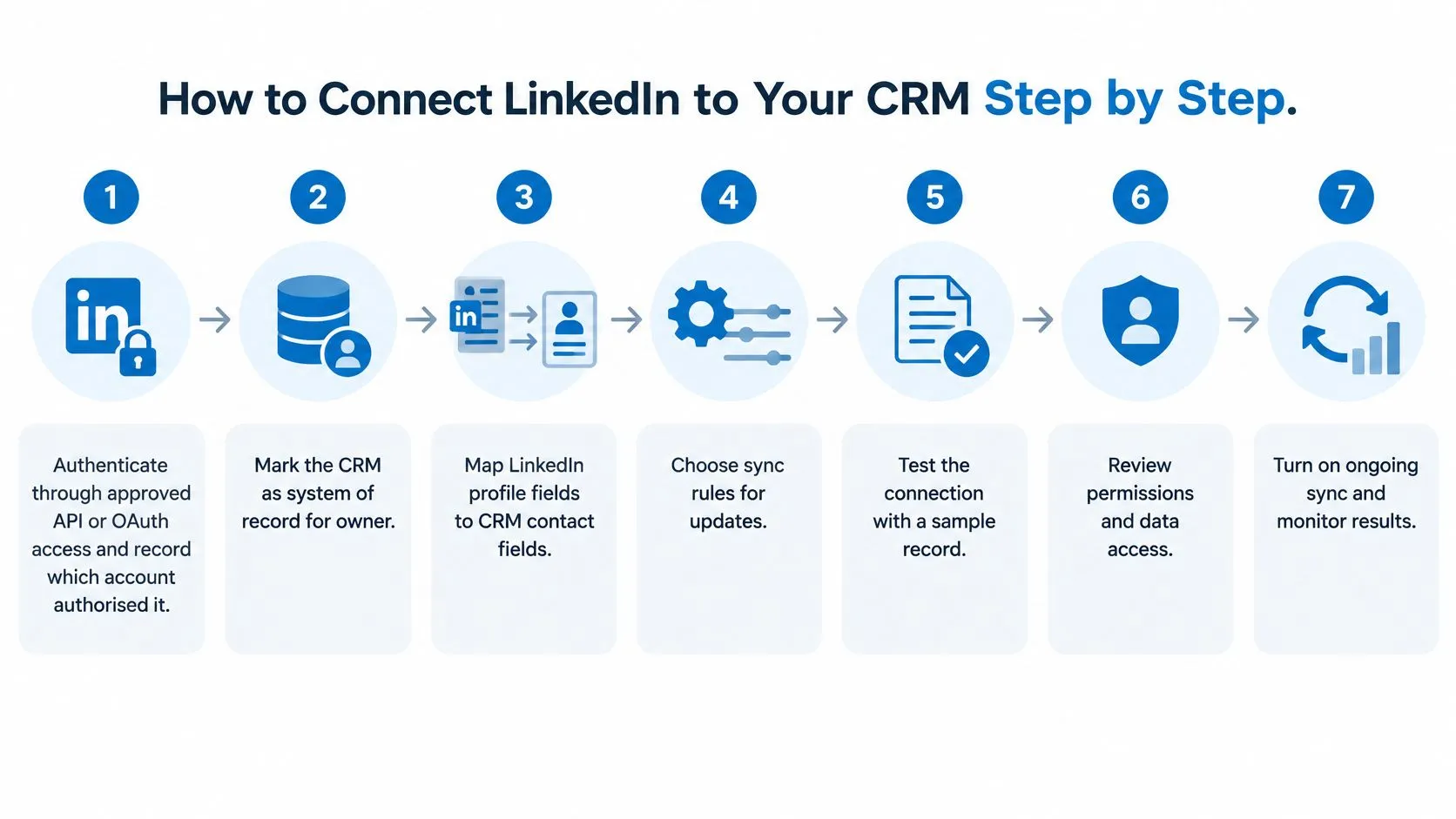
The connection flow should include permission checks, mapping, and validation before ongoing synchronization.
Establish the connection and load history
-
Authenticate through approved access. Use the connector’s supported OAuth flow or approved API credentials, and record which account authorized it. Capture the environment, scopes, and responsible administrator so a disconnected integration doesn’t become an ownership mystery.
-
Mark the CRM as authoritative for owner, lifecycle stage, and duplicate decisions before enabling writes. Configure the connector’s direction settings accordingly, and disable unsupported writebacks rather than assuming a two-way toggle respects field ownership.
-
Backfill the authorized historical scope, then compare source totals with destination outcomes. LinkedIn’s CRM Connect documentation requires historical synchronization for initial activation and documents ceilings of up to 100,000 requests per day and 10,000 records per minute for that integration, not a universal allowance for every LinkedIn connector.
Normalize, upsert, and reconcile
-
Normalize identifiers before matching: lowercase the hostname in profile URLs, remove tracking parameters, strip
wwwfrom company domains, and trim whitespace from names. Standardize titles into a separate reporting field while preserving the original text, because aggressive cleanup can erase useful distinctions. -
Upsert contacts and accounts using stable external IDs, updating a match or inserting only when no valid match exists. If the integration exposes no stable member identifier, maintain a verified profile-URL mapping to the CRM ID rather than treating names or email alone as permanent identity.
-
Enable incremental updates through supported webhooks or scheduled delta runs. Choose an interval based on how quickly reps need the information, and save a successful checkpoint so restarting a job doesn’t replay the entire history.
-
Schedule reconciliation for failed, deleted, and changed records, with an owner for unresolved exceptions. Pace large backfills below the applicable connector limits and leave capacity for live updates, retries, and other integrations sharing CRM API capacity.
Don’t interpret the documentation’s throughput ceilings as a recommended operating speed. CRM validation rules, destination limits, and transformation work can require a slower queue.
When comparing LinkedIn lead generation tools, distinguish profile display, contact creation, enrichment, and activity writeback. Test the capability you need, not the integration badge.
Finish by syncing the audited cohort end to end. Open each contact in the CRM, verify ownership and stage against the authoritative CRM values, and compare the last activity date with the eligible source event. Repeat the same event deliberately to check that it doesn’t create another activity.
Field Mapping Rules That Protect Your Records
LinkedIn data mapped to CRM fields with write rules
| LinkedIn data | CRM field | Write rule |
|---|---|---|
| Profile URL | Contact custom field: LinkedIn URL | Match key; set once, never overwritten automatically |
| Full name | Contact name | Update only when blank or confirmed |
| Job title | Contact job title | Overwrite only when the incoming timestamp is newer; keep previous value |
| Current company | Account linked to contact | Link by company domain, not name |
| Company domain | Account website | Primary account match key |
| Message reply | Activity (type: LinkedIn reply) | Append only; never update the contact |
| Post or comment signal | Activity or lead score field | Routed by the signal rules below |
| Connection status | Contact custom field: connection status | Overwrite on change; log timestamp |
| Lead owner | Contact owner | CRM-only authority; sync reads only |
| Lifecycle stage | Contact lifecycle stage | CRM-only authority unless bidirectional rules are defined |
The table describes desired governance, not a promise that every connector exposes every field. If your connector can’t enforce a required rule, add a controlled transformation layer or leave that field out.
Store the profile URL in a dedicated contact field, not in notes. Treat it as a durable lookup aid rather than an immutable identity: a reviewed correction may be necessary if the public URL changes. Prefer the stable platform identifier when approved access exposes one.
Preserve meaning when values change
Company domains are better account-matching inputs than display names, but they need an exception process. Subsidiaries can share a domain, and a company can operate several domains. Maintain approved aliases and route ambiguous account associations for review.
For titles, store source observation time separately from sync time. Importing an old observation today doesn’t make it newer than a title verified yesterday. Preserve the prior value so an administrator can explain or reverse the change.
For evaluating freshness and validation together, The Social Search’s discussion of API enrichment latency and quality metrics is useful context. Fast delivery and trustworthy attributes are separate requirements.
Keep unsupported fields empty
Replies belong in activities, with their event identifiers and timestamps. They shouldn’t replace a contact’s title, lead source, or lifecycle stage. Likewise, a scoring update needs a defined interpretation, which is the operational distinction behind lead scoring, not permission to overwrite arbitrary contact fields.
Where no LinkedIn equivalent exists, mark the destination CRM-only. Don’t infer a contact owner from the sender or invent a lifecycle stage from connection status.
- Validate incrementally: Map a field, inspect it across the test cohort, then enable the next field.
- Version the mapping: Store the mapping version alongside each write so a bad transformation can be traced and corrected.
Which LinkedIn Signals Belong in Your CRM
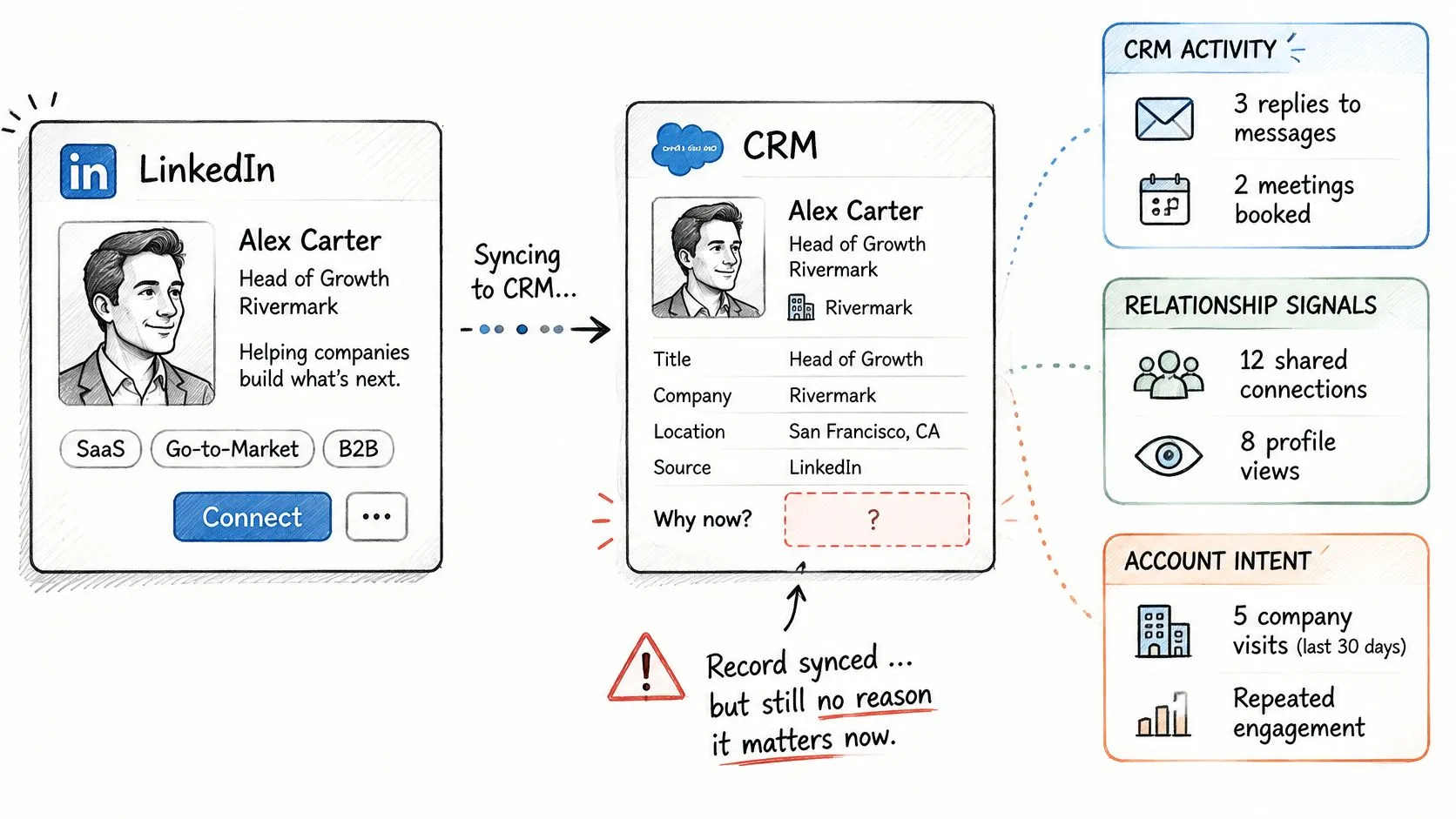
A synchronized contact can still lack the reason a rep should act. LinkedIn’s CRM Sync documentation describes initial ingestion and recurring reconciliation, but moving objects doesn’t decide which interactions deserve sales attention.
Keep that distinction visible when designing the workflow.
Route signals by the action they justify
Log actionable events as activities. A reply needs follow-up, a booked meeting needs preparation, and a role change can change an existing account relationship. Say an existing contact becomes head of revenue at a target account: retain the role-change event alongside the timestamped title update so the rep understands what changed.
Use weaker evidence for scoring. A post describing a problem you solve, engagement in a competitor’s conversation, or conference attendance can justify prioritization without creating a task. Someone attending SaaStr hasn’t necessarily requested outreach.
Keep passive noise outside the CRM. Profile views, likes, and unscored impressions rarely explain a concrete next action on their own. Saving every interaction can make the useful conversation history harder to find.
Where each LinkedIn signal should go
| LinkedIn signal | Destination |
|---|---|
| Reply to your message | CRM activity (type: LinkedIn reply) |
| Meeting booked | CRM activity |
| Role change for an existing contact | CRM activity, title updated with timestamp |
| Comment on your lead magnet | CRM activity |
| Post about a problem you solve | Lead score only |
| Engagement with a competitor’s conversation | Lead score only |
| Conference attendance, such as SaaStr | Lead score only |
| Profile views, likes and impressions | Keep outside the CRM |
These are recommended routing defaults, not claims that every connector exposes each signal. Apply them only to data your workflow is authorized to process.
For additional context on the LinkedIn workflow, use the video alongside your routing decisions.
Separate sequence from attribution
A reply after a message establishes order, not proof that an earlier signal caused a deal. Preserve the sender, campaign, source event, and event time, then label the activity as a reply.
That discipline matters in intent-based marketing: evidence of interest helps prioritize work without establishing purchase intent conclusively.
Would a rep act on this within a week? If not, route it to scoring or keep it outside the CRM.
Deduplication and Troubleshooting Sync Errors
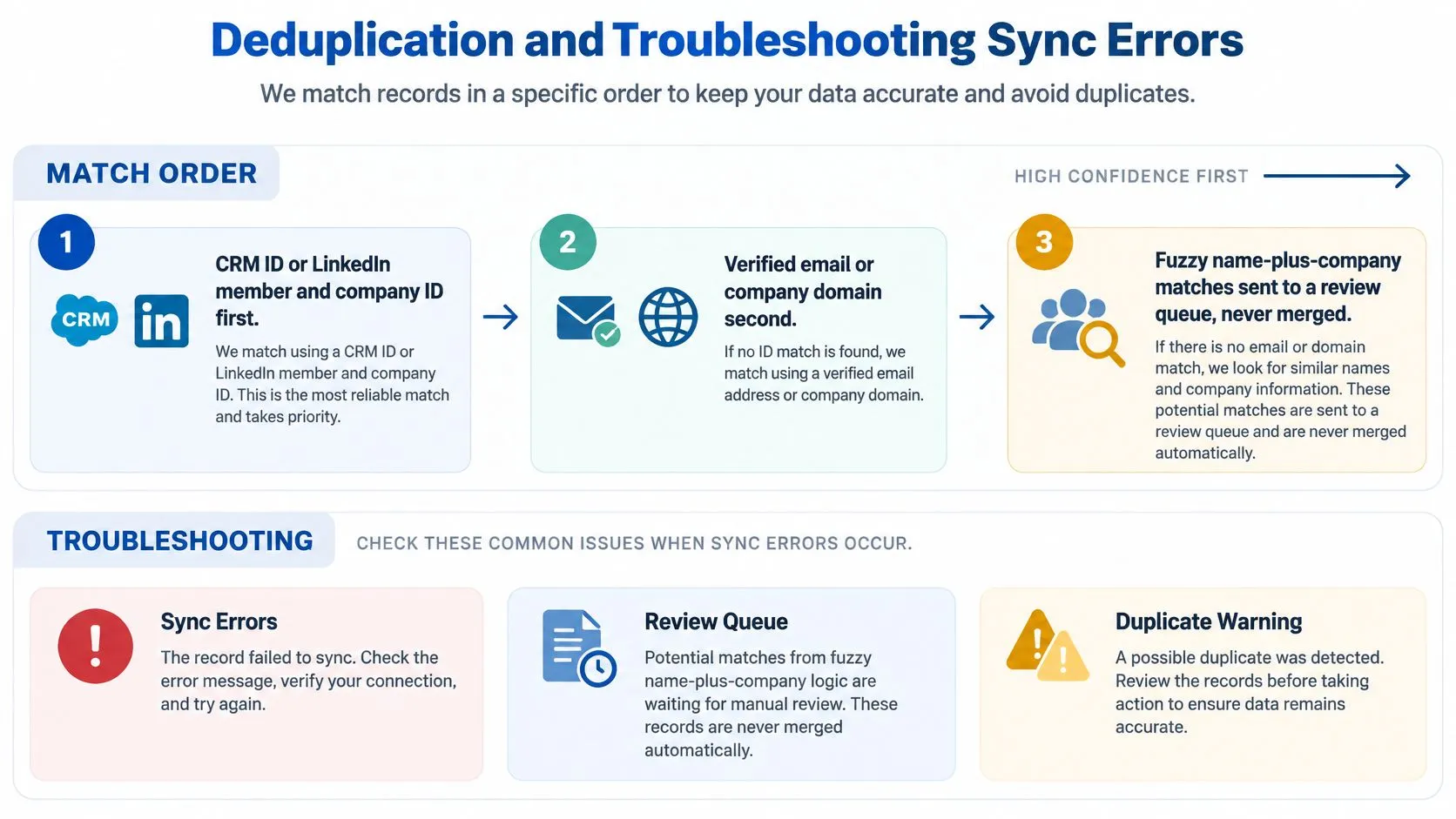
Match by CRM ID or LinkedIn member/company ID first, then verified email for contacts or domain for accounts. Keep fuzzy name-plus-company matches in a review queue, never an automatic merge path. If identifiers disagree, stop the write instead of choosing whichever match the connector returns first.
The temptation is to let the connector guess, because a queued match looks like unfinished work. A title-and-company hit that merges two people puts one prospect’s replies onto a colleague’s record, and unpicking that history takes longer than the review queue ever would.
Use symptoms to narrow the investigation before replaying records.
| Symptom | Likely cause | Fix |
|---|---|---|
| Duplicates appear after backfill | Matching on names or mutable titles | Repair identity mappings and review suspected duplicates |
| Titles repeatedly revert | Missing or misused source timestamps | Compare observation times and retain the trusted value |
| Repeated activities appear | Event replay without deduplication | Enforce a unique source-event key |
| Lifecycle stages oscillate | Competing writers | Disable the unauthorized write direction |
| Source and CRM totals differ | Unreconciled skips or failures | Reconcile outcomes by object and connector |
| Updates suddenly stop | Revoked access, expired authorization, or job failure | Inspect authentication and scheduler logs |
| The same record fails repeatedly | Schema, permission, or validation error | Quarantine, repair, then replay |
| Deleted contacts reappear | Backfill ignores deletion or suppression state | Apply deletion checks and suppression before upsert |
Protect trusted fields and make retries safe
Never replace a high-confidence CRM value with lower-confidence enrichment because it arrived later. Store source, observation timestamp, confidence, and previous value for synchronized attributes. A newer delivery timestamp is not enough to authorize an overwrite.
For contacts, an upsert should resolve to the same destination record on every retry. Activities need their own protection: use a source-event identifier scoped to the connector and workspace, and check it before inserting another activity. Contact-level upserts alone won’t prevent repeated replies from appearing in the timeline.
The identity hierarchy should remain visible to whoever reviews exceptions.
Transient failures, such as timeouts or rate limiting, can be retried with exponential backoff and jitter. Respect server retry instructions where available. Permission failures, missing required fields, and invalid enum values need intervention, not an endlessly growing retry queue.
Log the source event, destination object, mapping version, retry count, and final status. Preserve enough diagnostic detail to replay the failed item without copying unnecessary prospect data into logs.
Measure outcomes rather than job completion
Databar’s guide to CRM data-quality metrics puts a healthy duplicate rate below 2% and treats anything above 5% as serious. Attribution accuracy and lifecycle consistency have no universal healthy number, because both depend on your objects and your field mapping. Set a baseline from a clean week, then watch for movement against it.
Sync health metrics and the thresholds to check
| Metric | Target | Action if missed |
|---|---|---|
| Duplicate rate (general CRM guidance) | Below 2% healthy; above 5% serious | Audit matching before importing more records |
| Accepted-record rate | All eligible records accounted for | Compare source and CRM counts daily |
| Median freshness lag | Within the documented freshness objective | Shorten the delta interval |
| Retry-success rate | Recoverable failures resolve within the retry policy | Review transient failures and backoff settings |
| Orphan rate | No unexplained records without valid parents | Reconcile records without a valid parent |
| Reconciliation variance between source and CRM totals | No unexplained variance | Run a full reconciliation by object |
Read the table as operating guardrails, and remember that a low duplicate rate can hide incorrectly merged people. Sample accepted records as well as failed ones, and define exactly what each metric’s denominator includes.
For freshness, measure source-event time against destination availability, not job start against job finish. If a connector doesn’t expose source timestamps, acknowledge that limitation instead of reporting an artificial freshness figure.
Reconcile omissions and honor suppression
Run a daily comparison of created, updated, skipped, duplicate, and failed records, grouped by object and connector. Separate intentional exclusions from errors. Otherwise an apparent count mismatch can prompt an administrator to reimport contacts that were correctly suppressed.
When records stop updating, inspect authorization status, scopes, scheduler execution, and queue depth before reauthorizing. An expired token is one possible cause, not the explanation for every stalled integration.
Deletion handling needs similar care. A missing source record could reflect changed permissions or a narrower filter rather than a confirmed deletion. Verify the reason before removing the destination contact or its account history.
Suppression is a gate, not a field to sync. A record carrying a suppression flag or an open privacy request stays blocked through every create, update, and replay, and an old backfill must never reactivate a prospect who asked to be removed. Keep the suppression list in one place for manual imports and connector writes, so a replayed batch gets the same answer as a fresh one.
Replay rule: A retry should complete the original operation, not create a new sales event.
Confirm the Sync Before You Scale It
I would launch with a controlled cohort, such as a rep’s accounts or a campaign’s contacts, rather than opening the entire database. Start with the audited contact test and observe the workflow through a normal follow-up cycle. Include replies, title changes, failed writes, and suppressed contacts, not just easy inserts.
The launch scorecard should retain the same operating guardrails rather than introducing looser standards when volume increases.
Launch benchmarks and the action when each is missed
| Metric | Target | Action if missed |
|---|---|---|
| Duplicate contacts | Below 3% | Pause expansion and review match rules |
| Duplicate rate, general CRM guidance | Below 2% healthy; above 5% serious | Audit matching before importing more records |
| Field-level attribution accuracy | Above 90% | Recheck field mapping and write rules |
| Lifecycle-stage consistency | 100% | Fix ownership rules before expanding |
| Unexplained lifecycle conflicts | Zero | Hold the cohort until each conflict is explained |
Expand by account group or campaign only after reviewers can explain the exceptions. If a benchmark slips, stop adding volume and repair the relevant mapping or match rule. More records make an unresolved defect harder to unwind.
Choose a connector you can operate
Build in-house when your team needs custom identity resolution or unusual governance and can maintain authentication, schema changes, and recovery. A platform is a reasonable alternative when it supports the required controls without custom engineering.
Evaluate the working integration against concrete criteria:
- Field coverage: LinkedIn URL, title, and reply data are available where your workflow requires them.
- Write protection: CRM-owned fields can remain protected.
- Reconciliation: Created, updated, skipped, and failed outcomes are visible.
- Custom checks: API access supports independent validation.
- Approval status: The access method and permitted uses are documented.
We sync with CRM and outreach tools in seconds and offer integrations with more than thirty other GTM tools. Leads can arrive in Slack or your inbox, but delivery speed doesn’t replace validation of destination fields and ownership.
If synced contacts also enter email outreach, validate that channel separately with a MailGenius inbox placement test. Clean CRM records don’t establish that messages will reach an inbox.
Run the fifty-contact test this week, record each benchmark’s result, and assign an owner to every exception before expanding.
LeadBeast connects LinkedIn buying signals, lead scoring, personalized outreach, and a shared reply inbox with your CRM workflow. Visit LeadBeast to evaluate the field coverage and integration controls against your test cohort before moving more contacts.